


iPhone Photo Recovery: Retrieve Deleted Images Without Backup

Change language:
Sponsored content
In this article, you will learn how to recover permanently deleted photos on your iPhone without a backup.
Creating a regular backup of your iPhone is a good practice to avoid experiencing data loss at any time. What if someone loses photos, videos, or other information from an iPhone that does not have a backup? Will they be permanently lost with no chance of recovery? Well, the answer is NO. There is always a chance of recovery unless the data is not synced, overwritten, or backed up.
Have your iPhone photos been accidentally deleted, and you don’t have a backup? You are not alone. Whether it is a sync gone wrong, an iOS update failure, or a mistaken click, losing your photos always puts you in a frustrating situation, especially when you don’t have iTunes or iCloud backup.
But, you don’t have to worry about your deleted photos, as this article presents true-and-tested methods to recover permanently deleted photos on iPhone without backup. It also highlights the common reasons behind this issue and tips for avoiding future data losses.
Part 1. iPhone Photos Lost? Here’s Why It Happens!
Before you go ahead and try recovering your permanently deleted photos from your iPhone without backup, it is crucial to know why they are often lost from your phone. Here is a list of the most common reasons your iPhone loses photos.
- Accidental Deletion: There is a chance you will delete photos, videos, and other data files accidentally. It is called a human error and happens most of the time.
- Physical Damage: If your iPhone drops on a harder surface, it may damage the screen, making the data inaccessible. Similarly, hardware failure may occur due to water damage.
- Factory Reset without Backup: If you factory reset your iPhone without creating a full device backup, you may lose all the data permanently.
- Storage Problem: If your phone is running out of storage, the application may crash. As a result, new data may not be stored.
- Jailbreaking: Since it bypasses Apple restrictions, it can cause data loss and system instability.
- iOS Update Failure: Connection problem, power issue, and insufficient storage may result in iOS update failure, making your photos inaccessible.
Part 2. Photo Recovery Made Easy with Recoverit [Desktop]
You don’t want to lose your photos permanently. Right? If so, there is nothing better than downloading reliable free data recovery software like Wondershare Recoverit. It not only helps you retrieve your data but also keeps it fully secure.
Whether your photos are recently deleted or you lost them a while ago, Recoverit data recovery will help you regain them in no time. It has 35+ patents and over 100 million users from 160+ countries. The availability of free 24/7 tech support adds more value to the credibility of this photo recovery tool.
Why Recoverit?
This tool can recover all types of data, including guaranteed iPhone photo recovery. Let’s examine some of its prominent features that contribute to its reputation.
- Recoverit can recover deleted photos and 1,000+ files from over 2,000 storage devices.
- This tool maintains a successful data recovery rate of 99.5%.
- It enables you to recover data from 500+ scenarios like accidental deletion, corruption, etc.
- You can preview photos before restoring them.
- It guarantees your data protection while recovering.
Retrieve Deleted Photos without a Backup Using Recoverit
Download Recoverit on your computer. Install the tool and start following the steps given below.
Step 1: First, use a USB cable to connect your iPhone to the computer.
Step 2: Choose the device in Recoverit and click Start. Your iPhone will appear in the External Drives section.
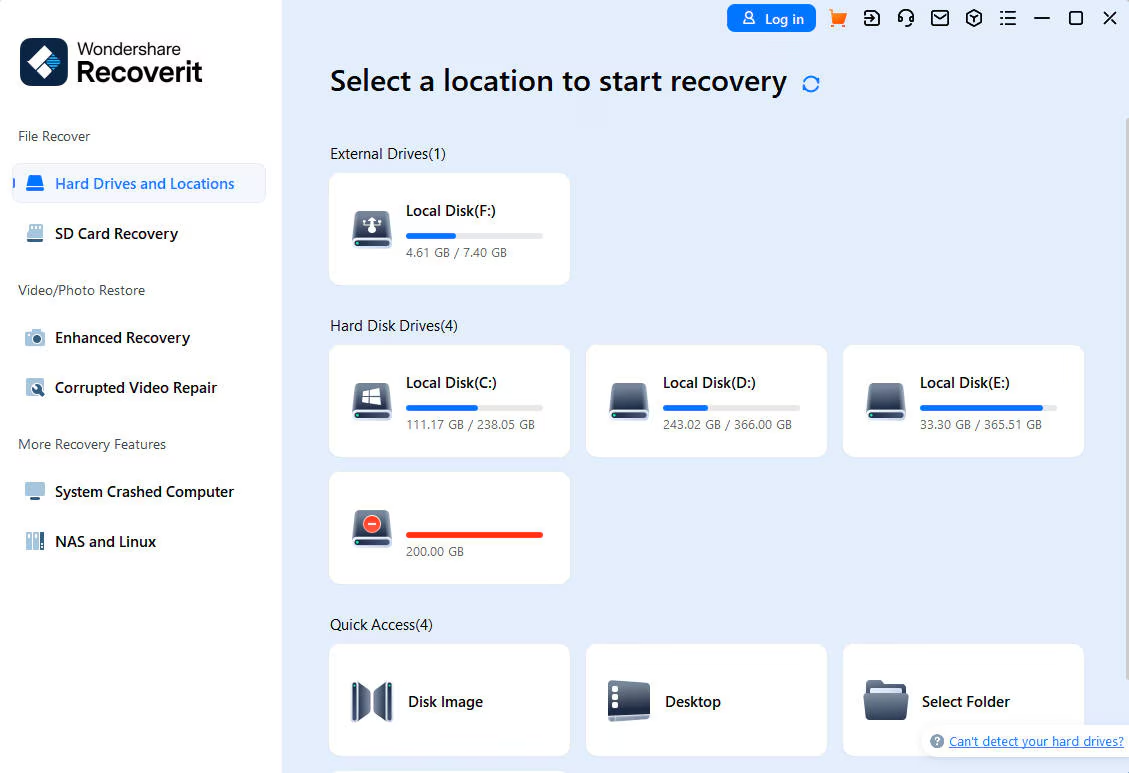
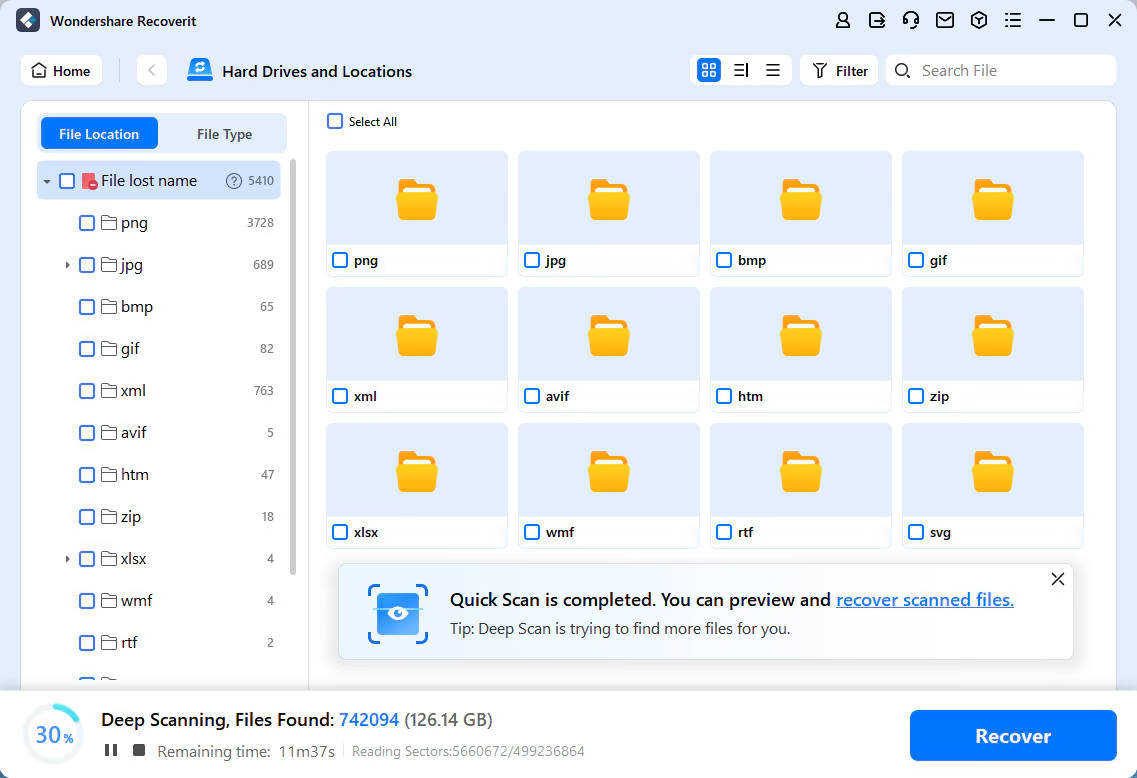
Step 3: Recoverit will now start searching for deleted photos from your iPhone. The tool shows the real-time scanning progress at the bottom. As soon as it finds the desired photos, you can stop scanning.
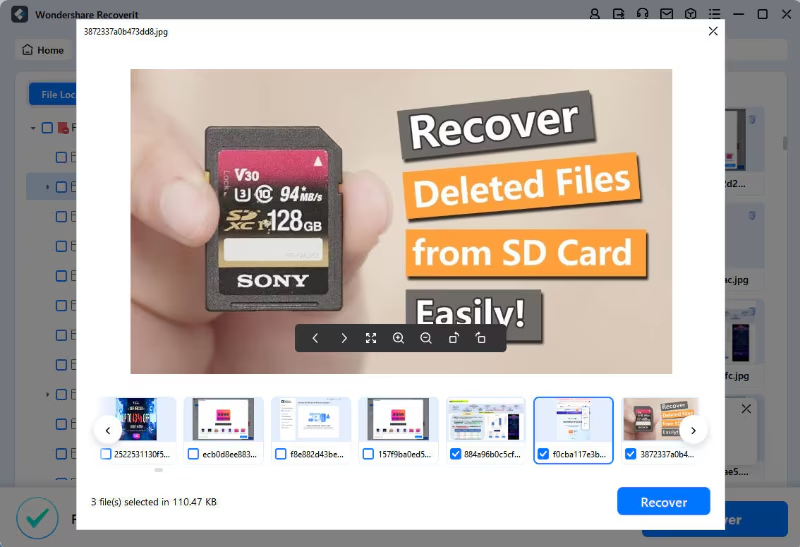
Step 4: You can preview photos once they are scanned. To see your photo before recovery, click the Preview button.
Part 3. How to Recover Permanently Deleted Photos on iPhone without a Backup?
Don’t worry if you have mistakenly deleted photos from your iPhone and you don’t have their backup, too. Below is a list of three efficient methods that may help you get your deleted photos back on your iPhone, even if you don’t have their backup.
1. Check the Recently Deleted Folder
Have some of your photos been recently deleted from your iPhone? There is nothing to be worried about, as the iPhone keeps your deleted photos in the Recently Deleted album. Here is how you can recover recently deleted photos on an iPhone via the Recently Deleted utility.
Step 1: Launch the Photos App on your phone.